



Prerequisites
- A Nosmai Console account
- The final Android application ID, iOS bundle identifier, or Web origin
- The installed Nosmai Effects package for the target platform
Create a project
- Sign in to Nosmai Console.
- Create a project for the application.
- Select the target platform.
- Enter the final application identity exactly.
- Enable the required Nosmai Effects capabilities.
- Copy the generated key into private build configuration.
Do not paste a real key into a public repository, issue, screenshot, analytics event, or support message.
Match the application identity
| Platform | Registered identity | Check it in |
|---|---|---|
| Android | Application ID | App module applicationId |
| iOS | Signed bundle identifier | Xcode Signing & Capabilities |
| Flutter or React Native | The corresponding native identity | Android and iOS host projects |
| Web | Licensed origin | location.origin, including scheme and configured port rules |
Android and iOS normally use separate keys even when they share one Flutter or React Native codebase.
Initialize once
Initialize at the application or camera-session boundary. Do not initialize in a widget build, render function, list item, or frame callback.
Use the platform quickstart for the exact released method:
An accepted initialization starts the native session. Final online verification can complete asynchronously, so observe the license-status callback where the platform exposes it.
Understand each state
The current native enforcement keeps the host application alive. It does not intentionally crash the process after a delay.
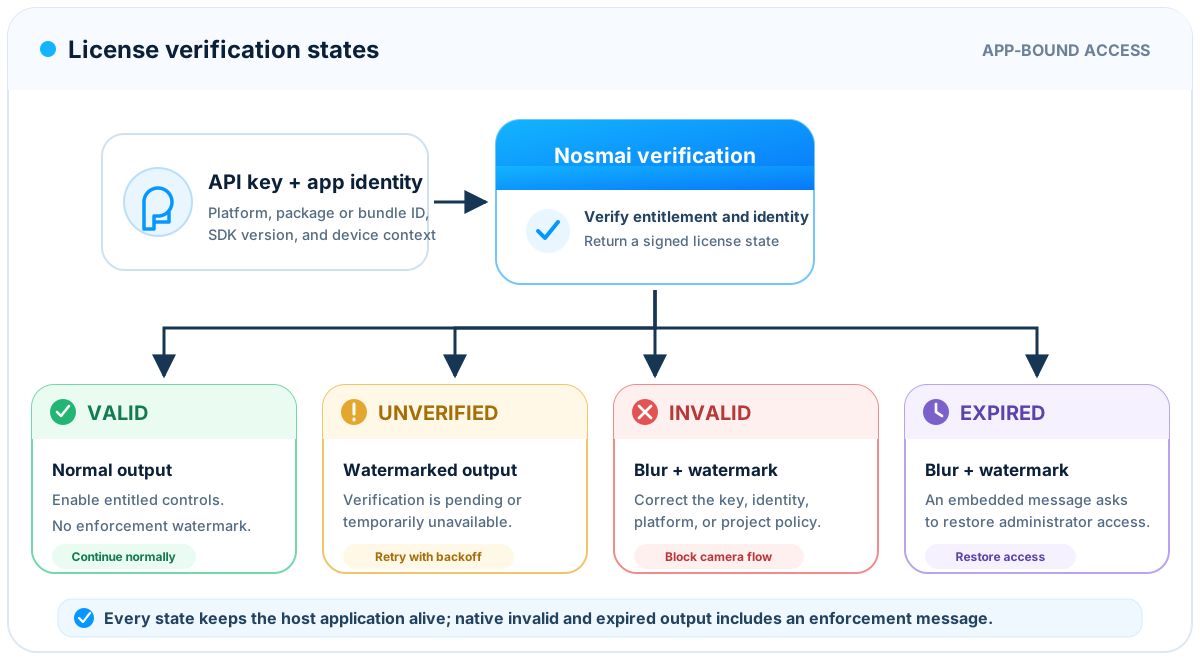
| State | Camera output | Application action |
|---|---|---|
VALID | Normal output without an enforcement watermark | Enable entitled controls |
UNVERIFIED | Watermarked while verification is pending or temporarily unavailable | Wait, retry with bounded backoff, and keep the state visible |
INVALID | Strong full-frame blur plus watermark on native output | Block the production camera flow and correct the rejection |
EXPIRED | Strong full-frame blur plus watermark on native output; application remains alive | Restore the project or subscription |
The Web preview remains watermarked until verification succeeds, but its current visual enforcement is not identical to native invalid-key blur.
Native 3.0.4 also renders a short enforcement message inside the processed output. LICENSE_EXPIRED shows Nosmai Effects license has expired. Please contact your administrator. MAU_LIMIT_EXCEEDED is treated as an invalid state and shows Monthly usage limit reached. Please contact your administrator. Other confirmed invalid states show Nosmai Effects unavailable. Please contact your administrator. Keep any additional product UI outside the camera preview concise and consistent with the SDK state.
Diagnose a rejection
| Server code | What to check |
|---|---|
API_KEY_INVALID | The key is complete, active, and not revoked |
PACKAGE_ID_MISMATCH | The installed package or bundle identity matches Console exactly |
PLATFORM_MISMATCH | The key belongs to the current platform |
SDK_VERSION_UNSUPPORTED | The linked native release is allowed by the project |
MAU_LIMIT_EXCEEDED | The current project usage policy and account status |
DEVICE_NOT_REGISTERED | The device is accepted by project policy |
LICENSE_EXPIRED | The project license is current |
DNS failures, timeouts, and other transport errors are temporary UNVERIFIED conditions, not proof that a key is invalid.
Plan for offline use
The first successful verification requires the Nosmai licensing service. A signed cached state can support a limited offline period where current account policy allows it. Retry when connectivity returns; never run a tight loop or reuse one key's cached validity for another key.
Keep environments separate
Use different Console projects and identities for development, staging, and production. Inject the selected key through build or runtime configuration and redact it from release logs.
Verify it worked
- Start with an active network connection.
- Confirm initialization is accepted.
- Confirm the final status becomes
VALID. - Open the camera and confirm there is no enforcement watermark or blur.
- Repeat with the final signed application identity.
- Confirm logs and analytics do not contain the complete key.
Common errors
| Symptom | Cause | Fix |
|---|---|---|
Initialization returns false | Native startup rejected the request | Check the complete platform log before starting the preview |
| Preview remains watermarked | Verification is pending or temporarily unavailable | Check network and status callbacks, then retry with backoff |
| Preview is blurred and watermarked | Verification returned confirmed INVALID or EXPIRED | Read the server code and correct the key, identity, usage limit, or project |
| Camera error appears after a valid license | Another camera owner or device-specific Camera2/AVFoundation failure | Separate camera lifecycle diagnostics from license verification |
Next steps
- Install Nosmai Effects
- Open the platform quickstart
- Review licensing and MAU
- Troubleshoot initialization
