

The basic flow
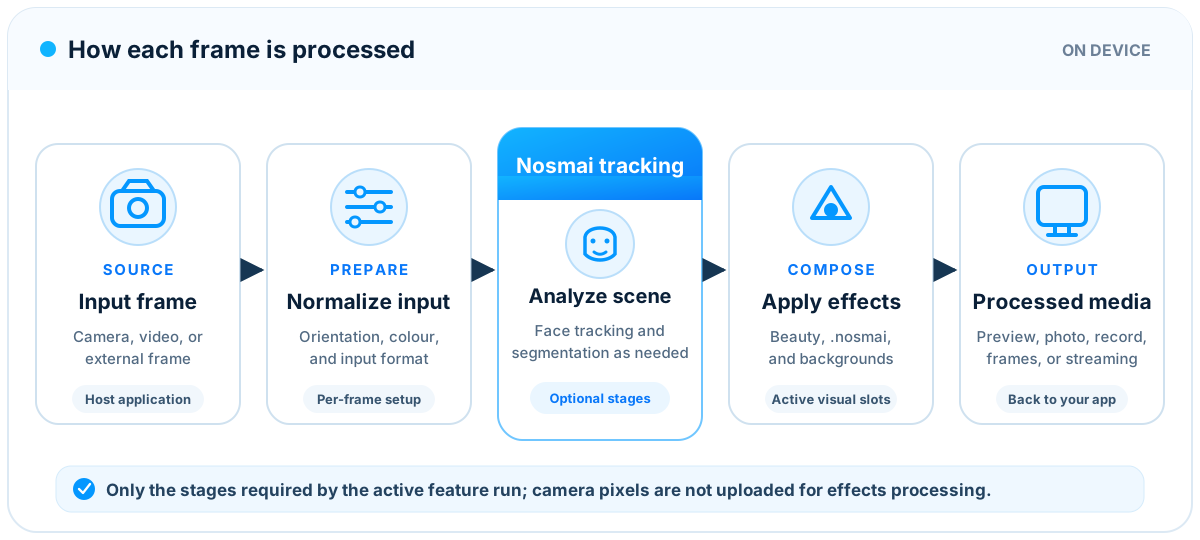
A Nosmai camera experience has four parts:
Camera input
|
v
Nosmai processing
|
v
Preview and active effects
|
v
Photo, recording, or live-stream output
The application supplies or starts the camera, Nosmai processes each frame, and the processed result is displayed or delivered to the requested output.
Camera input
Camera input is the original frame before a visual effect is applied.
Nosmai can work with:
- the SDK-managed camera on iOS
- the SDK-managed platform camera view in Flutter
- Camera2 input connected to
NosmaiPreviewViewon Android - external video frames for custom camera, video, or streaming integrations
The application should have one active owner for a camera source. Starting two camera sources for the same preview can cause a black screen, duplicated work, incorrect orientation, or camera access failures.
Processing
Processing is the work that turns an input frame into the final visual frame.
Depending on the active features, this can include:
- orientation and mirroring
- color adjustment
- face detection
- face landmark tracking
- skin and makeup rendering
- face shaping
- AR effect rendering
- background segmentation
- composition of the final frame
Nosmai automatically enables the work required by the active feature. A simple color filter does not need the same face analysis as lipstick or face shaping.
Preview
The preview is the live processed camera image shown inside the application.
| Platform | Preview API |
|---|---|
| Flutter | NosmaiCameraPreview |
| iOS | Attach NosmaiCore.shared.camera to a UIView |
| Android | NosmaiPreviewView |
The preview should have a stable size and remain attached while camera processing is active. Recreating it repeatedly can force camera and graphics resources to be rebuilt.
Start, pause, stop, and cleanup
These actions have different meanings.
| Action | Purpose |
|---|---|
| Start | Begin camera capture and frame processing |
| Pause | Temporarily release or pause camera use while keeping reusable SDK state |
| Resume | Restore a paused camera session |
| Stop | End the current processing session |
| Cleanup | Release SDK resources when the application is truly finished with the SDK |
Use pause and resume for temporary application backgrounding. Use stop and view detachment when leaving a camera screen. Use full cleanup only when the SDK will not be needed again without a new initialization.
Do not call full cleanup on every widget rebuild or every short navigation event.
Orientation and mirroring
Camera sensor orientation, device orientation, and preview orientation are separate values.
The final preview must account for:
- front or back camera
- camera sensor orientation
- portrait or landscape display
- application rotation support
- front-camera mirror preference
Front preview mirroring is usually a user-interface choice. Recording and live-stream output may need a different mirror setting from the local preview.
Apply mirroring in one place. Applying it twice can cancel the visual flip or make face-tracked effects appear reversed.
Built-in features
Built-in features are SDK methods that can be adjusted directly while the camera runs.
They are grouped into several categories.
Beauty
- skin smoothing
- skin whitening
- sharpening
- teeth whitening
Makeup
- lipstick
- eyeshadow
- blusher
- eyelashes
- eyebrows
Face shaping
- lips
- face slimming
- eye size
- nose
- chin
- brow
- brow thickness
- jaw
- mouth width
- forehead
Color controls
- brightness
- contrast
- RGB
- hue
- saturation
- white balance
- grayscale
Built-in controls are useful when the application needs a slider, intensity value, or custom preset.
External .nosmai packages
A .nosmai file is a protected package containing a complete visual effect. The package includes a manifest that tells the SDK what type of effect it contains.
Use:
applyEffect(path)
for every supported package type.
Package types
| Manifest type | What it is for | Replacement behavior |
|---|---|---|
filter | LUT, color grade, and full-frame filter | Replaces the previous regular filter |
effect | AR mask, sticker, particle effect, or 3D effect | Replaces the previous AR or beauty effect |
beauty_effect | Packaged makeup or face-mesh beauty effect | Replaces the previous AR or beauty effect |
background | Packaged background replacement | Replaces the previous background package |
effect and beauty_effect share the same active AR position. Applying one replaces the other.
The application does not choose this position manually. The SDK reads the internal package type.
Active features and coexistence
Some features can remain active together, while others replace the previous feature in the same category.
A common external-package combination is:
regular filter + AR or beauty effect + background
Important rules:
- one regular
.nosmaifilter is active at a time - one
.nosmaieffectorbeauty_effectis active at a time - one
.nosmaibackground package is active at a time - applying a new package replaces the current package in the same category
Built-in beauty, makeup, reshape, color, and hair controls are an alternative mode to an external effect or beauty_effect. Applying either AR-slot package clears those built-in controls. Applying one of those built-in controls while an AR-slot package is active clears the AR package. This rule is the same on Android, iOS, and Flutter.
A regular external filter can remain active with built-in controls. Built-in controls can also remain active with a manual background. External background packages and AR effects follow the background policy described in Filters and effects.
The SDK provides active-state methods and listeners so the application can keep selected buttons and filter sheets synchronized with the native state. Treat listener state as the final result after an asynchronous apply or clear operation.
Local filter discovery
Production local filters use three files:
filter_name.nosmai filter_name_manifest.json filter_name_preview.png
The external manifest and preview allow the application to show a filter list without opening and reading every protected package.
Use production local discovery for released applications.
Debug filter discovery
Debug discovery scans loose .nosmai files that may not yet have an external manifest or preview image.
It is intended for:
- filter development
- internal testing
- quickly testing a new package
It is not the recommended production catalog method. Debug discovery may need additional file inspection and does not provide the same catalog quality as complete production entries.
Cloud filters
Cloud filters separate the catalog from the application release.
The cloud flow is:
Request filter metadata
|
v
Show names and previews
|
v
Download the selected package
|
v
Use its local path with applyEffect
Cloud filter requests can include:
- page
- limit
- filter type
- catalog version
- whether all pages should be fetched
Version 2 is the default catalog version in the current SDK, so an application can request the standard list without supplying a version every time.
Built-in features compared with .nosmai packages
| Requirement | Recommended choice |
|---|---|
| A slider that changes skin smoothing continuously | Built-in method |
| A reusable lipstick style with direct intensity control | Built-in makeup method |
| A complete themed AR experience | .nosmai effect |
| A branded package containing several authored visual assets | .nosmai effect |
| A downloadable seasonal filter | Cloud .nosmai package |
| A simple color adjustment controlled by the app | Built-in color method |
| A packaged LUT distributed through the catalog | .nosmai filter |
The application does not need to convert every built-in setting into a .nosmai package. If a product combines the two systems, verify the selected state after every external package change and design the interface around the coexistence supported by the target platforms.
Face detection
Face detection and tracking are enabled internally when an active feature needs them.
Face-aware features include:
- makeup
- face shaping
- eye color
- face masks
- face-tracked 2D and 3D effects
- some background and beauty effects
The application normally does not need to:
- load a face model
- run a separate face detector
- send landmarks to each built-in makeup method
- choose a detection interval
The SDK owns these internal details so Android, iOS, and Flutter behavior can remain consistent.
Background processing
Background effects separate a person from the camera background.
Supported background experiences include:
- blur
- solid color
- still image
- looping video
- packaged
.nosmaibackground
Background processing is more expensive than a simple color filter because it analyzes the image before composing the final frame. Test background effects on the lowest-end device supported by the application.
Photo capture
A captured photo should contain the same active effects visible in the preview.
Before capture:
- wait for the preview to be ready
- wait for the selected effect to finish applying
- avoid switching the camera at the same moment
- request photo library permission only if the application saves to the library
Capture and saving are separate actions. The SDK can produce the image, while the application decides whether to save, upload, edit, or discard it.
Video recording
Recording receives processed frames, so active effects appear in the output video.
Recording may require:
- microphone permission for audio
- an output location
- enough available storage
- a supported video size
- stopping the recording before leaving the camera screen
Applying a very expensive effect while recording can increase device load. Test effect switching during recording if the user interface allows it.
Live streaming
Live streaming uses the processed output rather than the unmodified camera frame.
The general flow is:
Camera
|
v
Nosmai effects
|
v
Processed frame
|
v
Streaming provider
Nosmai does not replace channel authentication, tokens, user roles, or the streaming provider's session management. It supplies the processed visual frame that the provider publishes.
Use the guide that matches the application:
- Native live streaming for Android and iOS applications.
- Flutter live streaming with Agora for Flutter applications using the Nosmai Agora bridge.
Performance and feature cost
Not every visual feature has the same cost.
| Feature | Typical relative cost |
|---|---|
| Brightness, contrast, or LUT | Low |
| Simple full-frame overlay | Low to medium |
| Face-tracked makeup | Medium |
| Face shaping | Medium |
| Complex AR effect | Medium to high |
| Background segmentation | High |
| Recording with effects | Additional output cost |
| Live streaming with effects | Additional output and encoding cost |
The exact result depends on the device and effect design.
For a stable experience:
- start with 30 FPS
- use a reasonable camera resolution
- avoid unnecessary simultaneous outputs
- do not apply the same effect repeatedly
- prevent rapid repeated camera switching
- wait for one filter change to finish before starting another
- test recording and streaming separately and together
- test thermal behavior during a long session
State ownership
Use one application-level owner for SDK initialization and one screen-level owner for the active camera view.
A useful responsibility split is:
| Owner | Responsibility |
|---|---|
| Application service | License initialization and global SDK access |
| Camera screen | Preview, camera controls, and screen lifecycle |
| Filter controller | Filter lists, selection, download, apply, and remove |
| Recording controller | Start, stop, elapsed time, and output handling |
| Streaming controller | Channel connection, token, role, and publishing |
This prevents multiple screens from trying to initialize, stop, or clean up the same SDK resources at the same time.
Error boundaries
Handle errors at the operation that can fail:
- initialization can fail because of identity, license, or connectivity
- camera start can fail because of permission or hardware access
- effect apply can fail because of a missing or invalid package
- cloud listing can fail because of connectivity
- download can fail because of storage or network issues
- recording can fail because of permissions, storage, or encoder setup
- streaming can fail because of provider authentication or channel setup
Do not represent every failure as a camera failure. Clear error categories make support and retry behavior easier.
Recommended integration order
Build the application in this order:
- initialize the SDK
- display a stable camera preview
- implement pause, resume, stop, and navigation
- apply one built-in effect
- apply one local
.nosmaipackage - add filter listing and active-state UI
- add photo capture
- add recording
- add cloud filters
- add background effects
- add live streaming
- run long-session and low-end-device tests
This order makes it easier to identify whether an issue belongs to camera setup, effect application, output, or application lifecycle.
Continue with Filters and effects to understand package types, listing, application, active state, removal, and cloud downloads.