
Nosmai / docs
Nosmai Effects Nosmai Moderation Nosmai Try-ons coming soon
Docs menu Native live streaming
docs / nosmai effects / guide / native live streaming

Native live streaming

Send the processed Nosmai camera output from a native Android or iOS application to a live-streaming encoder while keeping filters, beauty, makeup, and backgrounds visible to viewers.

Native live streaming

This page is for native Android and iOS applications. For Flutter with Agora, read Flutter live streaming with Agora.

Overview

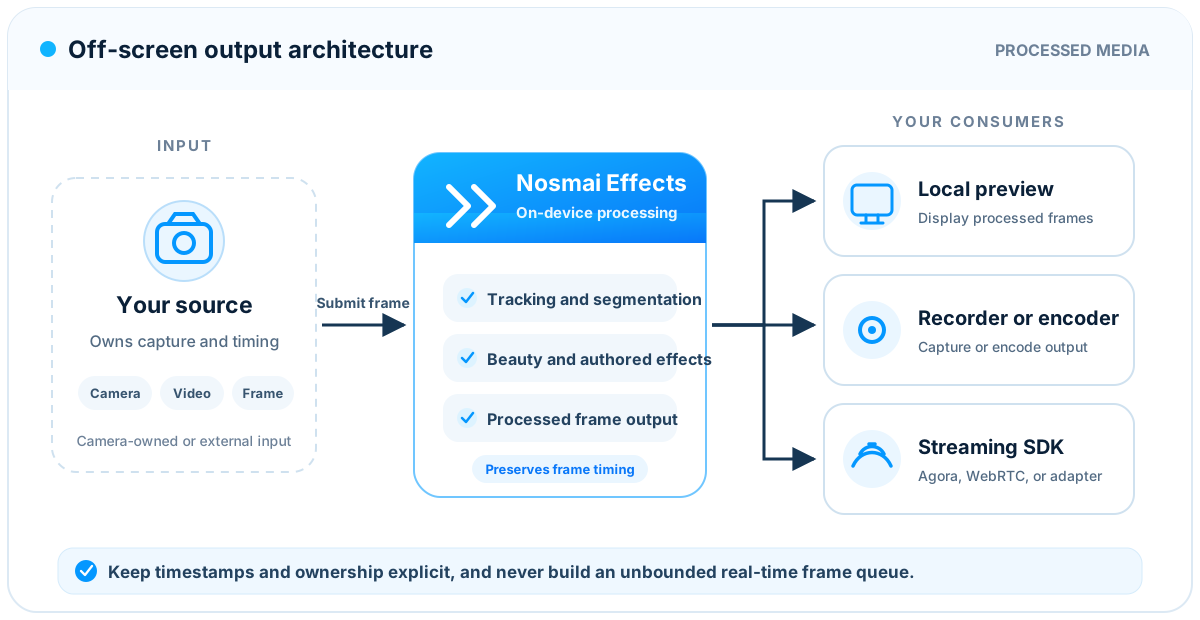
Native live streaming sends the processed Nosmai camera result to a video encoder or streaming SDK.

The remote viewer should receive the same effects that appear in the local preview:

Camera
  -> Nosmai filters and beauty
  -> Processed frame
  -> Native streaming SDK or encoder
  -> Remote viewers

Nosmai owns the camera and effect rendering. Your application still owns:

  • the streaming provider account and App ID
  • channel names and access tokens
  • broadcaster and audience roles
  • audio publishing
  • connection events
  • remote-user rendering
  • application navigation and session state

Do not start a second local camera from the streaming SDK while Nosmai owns the camera. Publish the processed Nosmai output instead.

Choose the platform

ApplicationProcessed outputRecommended API
Native Android, broad compatibilityCPU frameNosmaiSDK.setFrameCallback(...)
Native Android with Agora shared EGLGPU textureNosmaiSDK.setTextureFrameCallback(...)
Native iOSCVPixelBufferRefNosmaiCore.liveFrameStreamCallback
Flutter with AgoraBridge-managed outputNosmaiAgoraBridge

The Android GPU texture flow provides the lowest copy cost, but it requires correct EGL context sharing and texture ownership. The CPU callback is easier to connect to a general encoder but costs more per frame.

Common lifecycle

Use this order:

  1. Create the streaming engine.
  2. On Android GPU texture integrations, register the shared EGL context before Nosmai creates its GL context.
  3. Initialize Nosmai and start its camera preview.
  4. Apply filters, beauty, makeup, or background effects.
  5. Register the processed frame consumer.
  6. Configure the streaming SDK to publish external video.
  7. Join the channel and start publishing.
  8. On stop, prevent new publishing before clearing callbacks and releasing resources.

The streaming SDK must not publish its own raw camera track at the same time. Doing so can show an unfiltered stream or cause camera ownership conflicts.

Android

Select the output mode

Android provides three render modes:

ModeLocal previewProcessed streaming output
PREVIEW_ONLYYesNo
STREAMING_ONLYNoYes
DUAL_OUTPUTYesYes

For a broadcaster who needs to see the local preview:

NosmaiSDK.setRenderMode(NosmaiSDK.RenderMode.DUAL_OUTPUT);

Use STREAMING_ONLY only when the application intentionally does not show the local preview. A blank local Nosmai view is expected in that mode.

CPU frame output

The CPU callback works with streaming systems that accept copied image or I420 data.

NosmaiSDK.setRenderMode(NosmaiSDK.RenderMode.DUAL_OUTPUT);

NosmaiSDK.setFrameCallback(frame -> {
    streamingConsumer.pushFrame(
            frame.pixelBuffer,
            frame.width,
            frame.height,
            frame.format,
            frame.timestampNs
    );
});

FrameData.format uses:

ValueFormat
0RGBA
1I420
2NV21

Use timestampNs as the video timestamp when the receiving API accepts nanoseconds. Convert it carefully when the streaming SDK expects milliseconds or microseconds.

The callback is not the Android UI thread. Do not block it with network requests, file access, image compression, or UI work. Pass the frame directly to the encoder and return.

GPU texture output for Agora

The Android texture route avoids full-frame GPU-to-CPU readback.

Before Nosmai initialization:

NosmaiSDK.setAgoraShareContext(agoraEglContextHandle);

After the Agora video consumer is ready:

NosmaiSDK.setRenderMode(NosmaiSDK.RenderMode.DUAL_OUTPUT);

NosmaiSDK.setTextureFrameCallback(
        (texId, width, height, timestampNs, fence) -> {
    streamingConsumer.pushTexture(
            texId,
            width,
            height,
            timestampNs,
            fence,
            () -> NosmaiSDK.releaseStreamSlot(texId)
    );
});

streamingConsumer represents the adapter written for the selected streaming SDK. Its completion callback must run after the encoder has finished using the texture. If submission fails before ownership is accepted, call releaseStreamSlot(texId) from that failure path.

The consumer must also wait for the supplied EGL fence before sampling the texture.

Every delivered texture ID must be released, including:

  • successful publish
  • dropped frame
  • encoder error
  • channel leave
  • application pause

Registering the share context after Nosmai initialization is too late because a GL context can join the share group only when that context is created. A late registration can produce a correct local preview and black remote video.

Portrait output

When the receiving encoder requires physically rotated portrait frames:

NosmaiSDK.setPortraitOffscreenOutput(true);

Do not apply the same rotation again in the encoder. Disable portrait output when the stream stops:

NosmaiSDK.setPortraitOffscreenOutput(false);

Stop Android streaming

Stop the publisher first, then clear the Nosmai consumers:

NosmaiSDK.setTextureFrameCallback(null);
NosmaiSDK.setFrameCallback(null);
NosmaiSDK.setPortraitOffscreenOutput(false);
NosmaiSDK.setRenderMode(NosmaiSDK.RenderMode.PREVIEW_ONLY);

Leave the streaming channel and release the streaming engine according to its own lifecycle. Release Nosmai only when the application no longer needs the camera.

iOS

Receive processed frames

When Nosmai owns the camera, use the high-level live frame callback:

[NosmaiCore shared].liveFrameStreamCallback =
    ^(CVPixelBufferRef pixelBuffer, double timestamp) {
        [streamingConsumer pushPixelBuffer:pixelBuffer
                                 timestamp:timestamp];
    };

Assigning the callback enables processed live frame output. Setting it to nil disables that extra output and conserves resources.

The callback runs on a background processing thread. Do not update UIKit directly from it.

Pixel buffer ownership

The callback owns the CVPixelBufferRef only for the duration of the callback. If the streaming SDK uses the buffer asynchronously, retain it first and release it when the consumer finishes:

[NosmaiCore shared].liveFrameStreamCallback =
    ^(CVPixelBufferRef pixelBuffer, double timestamp) {
        CVPixelBufferRetain(pixelBuffer);

        [streamingConsumer pushPixelBuffer:pixelBuffer
                                 timestamp:timestamp
                                completion:^{
            CVPixelBufferRelease(pixelBuffer);
        }];
    };

Do not retain every frame without a matching release. That causes continuous memory growth during a long stream.

Stop iOS streaming

Stop the publisher, then clear the callback:

[NosmaiCore shared].liveFrameStreamCallback = nil;

Leave the channel and release the streaming engine using its documented lifecycle. Keep Nosmai running if the application returns to the normal camera preview.

Apply effects

Apply filters and beauty through the standard native Nosmai APIs. Streaming does not require a separate filter instance.

The expected order is:

  1. Start the Nosmai camera.
  2. Apply or update effects through the normal SDK methods.
  3. Publish the processed output callback.

When an effect is replaced, one or more frames may be skipped briefly while the new resources are prepared. Do not queue old frames during that transition.

Performance

Keep one current frame

If the encoder is still using a previous frame, drop an older waiting frame and keep the newest frame. An unlimited queue creates visible delay between face movement and the remote effect.

Match the encoder to the output

Configure the encoder for the same:

  • width and height
  • portrait or landscape orientation
  • frame rate
  • expected pixel format

A mismatch can cause cropping, stretching, extra conversion, or black output.

Start with 720p at 30 FPS for live effects. Increase resolution only after testing beauty, AR effects, audio, network publishing, and thermal behavior together on mid-range devices.

Avoid extra conversions

Do not convert each frame through:

  • Android Bitmap
  • iOS UIImage
  • JPEG
  • PNG
  • Dart byte arrays

Use the native frame type accepted by the encoder. Prefer the Android texture route when a compatible shared EGL integration is available.

Troubleshooting

Local preview works but remote video is black on Android

Check that:

  • the shared EGL context was registered before Nosmai initialization
  • the streaming SDK is publishing external video, not its own camera
  • the texture consumer waits for the supplied fence
  • every texture slot is released after use
  • the encoder is configured for the supplied texture dimensions

Remote stream has no effects

The streaming SDK is probably publishing its raw camera track. Disable that track and publish the processed Nosmai output.

Stream becomes delayed

Remove frame queues and image conversions. Keep only the newest waiting frame. Check whether the encoder resolution or bitrate is too high for the device.

Memory increases on iOS

Verify that every CVPixelBufferRetain has one matching CVPixelBufferRelease. Clear liveFrameStreamCallback when publishing stops.

Second stream is black or frozen

Clear all callbacks and outstanding texture ownership during the first stop. Create or reconnect streaming-specific resources for the new session rather than reusing a released encoder or native handle.

Next steps

Nosmai

We make advanced camera and AI technology accessible to every developer. By packaging hard problems into simple

developers
legal
newsletter

Product updates and release notes. No spam.

© 2026 nosmai, inc · all rights reserved