
Nosmai / docs
Nosmai Effects Nosmai Moderation Nosmai Try-ons coming soon
Docs menu Off-screen rendering
docs / nosmai effects / core concepts / off-screen rendering

Off-screen rendering

Process external video frames or deliver filtered camera output to recording and streaming services without requiring every frame to be drawn in an on-screen preview.

Off-screen rendering

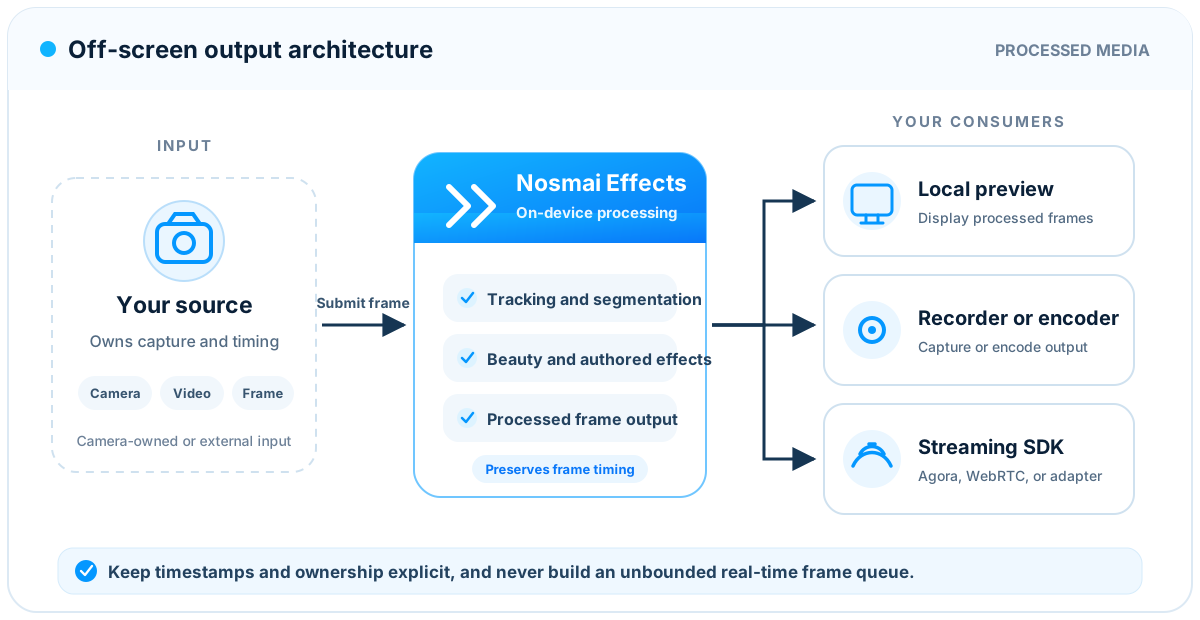
Off-screen rendering lets Nosmai process a frame and produce a filtered result without requiring that result to be drawn directly in the standard camera preview.

This is useful when your application needs to:

  • Process frames supplied by another camera or video source.
  • Send processed frames to a live-streaming service.
  • Record or encode processed frames using a custom media system.
  • Run effects in a native video-processing component without a visible preview.
  • Display the preview while also sending the same processed result elsewhere.

Off-screen rendering does not mean that Android or iOS can continue unrestricted camera processing after the application enters the background. Operating-system camera, microphone, and background-execution rules still apply.

Choose the correct flow

Nosmai supports more than one off-screen use case. Choose the flow that matches who owns the camera input.

RequirementInput ownerRecommended flow
Process external video frames without the Nosmai cameraYour applicationAndroid external I420 or iOS external CVPixelBuffer processing
Show the Nosmai camera preview and send processed output elsewhereNosmaiAndroid DUAL_OUTPUT or iOS live frame output
Send the Nosmai camera output without showing a local previewNosmaiAndroid STREAMING_ONLY
Record the normal Nosmai camera resultNosmaiUse the standard recording APIs
Stream from Flutter through AgoraNosmai and the bridgeUse the Nosmai Agora bridge

Do not feed frames from the Nosmai camera back into the external-input API. That would process the same frame twice, increase latency, and may apply an effect twice.

Frame ownership

Real-time rendering works best when each input frame has one clear owner.

Follow these rules:

  1. Keep at most one expensive off-screen operation in progress for a live source.
  2. When processing falls behind, discard an old waiting frame and keep the newest frame.
  3. Do not build an unlimited queue of camera frames.
  4. Do not reuse or release an input buffer until Nosmai has finished reading it.
  5. Consume a returned native output buffer before submitting another frame, unless your integration explicitly copies or retains that output.
  6. Use the input timestamp when sending the processed result to an encoder or streaming service.

These rules keep the preview responsive and prevent old results from appearing after the user's face has already moved.

Android external frames

Android accepts planar I420 input for direct external-frame processing.

Requirements

  • Initialize NosmaiSDK before initializing external processing.
  • Supply Y, U, and V as direct ByteBuffer objects.
  • Use planar I420, not NV21, NV12, RGBA, or an Android Bitmap.
  • Pass the actual stride for every plane.
  • Use rotation 0, 90, 180, or 270.
  • Keep the input dimensions stable during a processing session.
  • Use NosmaiSDK.ThreadMode.GL_THREAD unless you manage the current GL context yourself.

CALLER_THREAD requires a compatible GL context to be current on the calling thread. It is intended for advanced native integrations. GL_THREAD is the safer default for normal applications.

Initialize external processing

int width = 1280;
int height = 720;

boolean ready = NosmaiSDK.initializeExternalFramePipeline(width, height);
if (!ready) {
    throw new IllegalStateException("Nosmai external processing is unavailable");
}

NosmaiSDK.setExternalFrameMode(true);
NosmaiSDK.setExternalFrameThreadMode(NosmaiSDK.ThreadMode.GL_THREAD);

Initialize once for the active dimensions. If the video source changes resolution, stop external processing and initialize it again with the new dimensions.

Process and return a new I420 frame

NosmaiSDK.ProcessedI420Frame output =
        NosmaiSDK.processExternalI420Sync(
                yBuffer,
                uBuffer,
                vBuffer,
                width,
                height,
                yStride,
                uStride,
                vStride,
                rotation,
                mirror
        );

if (output != null) {
    videoConsumer.onI420Frame(
            output.yBuffer,
            output.uBuffer,
            output.vBuffer,
            output.width,
            output.height,
            output.timestampNs
    );
}

This call is synchronous. The returned Y, U, and V buffers refer to native output storage. Consume or copy them before processing the next frame.

Process writable I420 planes in place

Use in-place processing when the downstream video system already owns writable I420 planes and expects the result in those same buffers.

boolean processed = NosmaiSDK.processExternalI420InPlace(
        yBuffer,
        uBuffer,
        vBuffer,
        width,
        height,
        yStride,
        uStride,
        vStride,
        rotation,
        mirror
);

if (processed) {
    videoConsumer.onI420Frame(
            yBuffer,
            uBuffer,
            vBuffer,
            width,
            height,
            timestampNs
    );
}

The planes must be writable and large enough for their supplied strides. Nosmai blocks until the processed result has been copied back into the input planes.

Apply a .nosmai filter

Initialize external processing before applying the package:

boolean applied = NosmaiSDK.applyEffect(filterPath);

Use a tested .nosmai package intended for this input mode. External I420 processing uses a focused single-filter flow, so validate every package and required feature before shipping it in an external video integration.

Stop external processing

Stop the source first so no new frame arrives during cleanup.

NosmaiSDK.clearAllEffects();
NosmaiSDK.setFrameCallback(null);
NosmaiSDK.setExternalFrameMode(false);

If the application is closing the SDK completely, continue with the normal Nosmai cleanup call used by your application.

Android camera output

When Nosmai owns the camera, use a render mode instead of the external I420 input methods.

NosmaiSDK.setRenderMode(NosmaiSDK.RenderMode.DUAL_OUTPUT);

The available modes are:

ModeLocal previewExternal processed output
PREVIEW_ONLYYesNo
STREAMING_ONLYNoYes
DUAL_OUTPUTYesYes

A blank local view is expected in STREAMING_ONLY. Use DUAL_OUTPUT when the user must see the camera while publishing or recording through another system.

When a portrait streaming consumer requires physically rotated output planes, enable portrait off-screen output before registering the frame consumer:

NosmaiSDK.setPortraitOffscreenOutput(true);

Disable it when the stream stops. Do not also rotate the same frame in the encoder unless that encoder expects additional rotation.

CPU frame callback

NosmaiSDK.setRenderMode(NosmaiSDK.RenderMode.DUAL_OUTPUT);
NosmaiSDK.setFrameCallback(frame -> {
    externalConsumer.onFrame(
            frame.pixelBuffer,
            frame.width,
            frame.height,
            frame.format,
            frame.timestampNs
    );
});

The CPU callback is compatible with systems that cannot consume a shared GPU texture. It costs more because frame data must be transferred from GPU memory to CPU memory.

Remove the callback when output is no longer needed:

NosmaiSDK.setFrameCallback(null);
NosmaiSDK.setRenderMode(NosmaiSDK.RenderMode.PREVIEW_ONLY);

GPU texture output

For high-performance live streaming, prefer the Nosmai Agora bridge. It creates the required shared EGL setup and handles processed textures without a per-frame CPU image conversion.

Low-level Android integrations must:

  1. Provide Agora's EGL share context through NosmaiSDK.setAgoraShareContext(...) before Nosmai creates its GL context.
  2. Register NosmaiSDK.setTextureFrameCallback(...) only after the streaming consumer is ready.
  3. Wait for the supplied fence before sampling a texture.
  4. Always call NosmaiSDK.releaseStreamSlot(texId), including error and dropped frame paths.
  5. Clear the callback before leaving the channel or destroying either GL context.

Failure to release a stream slot can stop future texture delivery. Registering the shared context too late can produce black remote frames.

See Flutter live streaming with Agora for the supported Flutter integration.

External Android surface

NosmaiSDK.setRenderSurface(...) is a compatibility fallback for drawing the processed result into another Android Surface. It converts callback data through CPU memory and a Bitmap, so it is not the preferred route for a high-frame-rate camera experience.

Embed the normal NosmaiPreviewView when possible. If a fallback surface is required, remove it with:

NosmaiSDK.clearRenderSurface();

This releases the surface and restores PREVIEW_ONLY.

iOS external frames

iOS accepts external CVPixelBufferRef or CMSampleBufferRef input.

Requirements

  • Initialize NosmaiSDK before initializing off-screen processing.
  • Supply kCVPixelFormatType_32BGRA pixel buffers.
  • Keep width and height stable during the active session.
  • Keep an asynchronously submitted input buffer alive until completion.
  • Treat output callbacks as background-thread callbacks.
  • Retain an output pixel buffer if it must remain valid after the callback returns.

Convert camera formats such as bi-planar YUV to BGRA before calling the direct off-screen API.

Initialize and receive processed output

NosmaiSDK *sdk = [NosmaiSDK sharedInstance];

[sdk setCVPixelBufferCallback:^(CVPixelBufferRef output,
                                double timestamp) {
    CVPixelBufferRetain(output);

    dispatch_async(encoderQueue, ^{
        [videoConsumer consumePixelBuffer:output timestamp:timestamp];
        CVPixelBufferRelease(output);
    });
}];

BOOL ready = [sdk initializeOffscreenWithWidth:width height:height];
if (!ready) {
    NSLog(@"Nosmai off-screen processing is unavailable");
} else {
    [sdk setProcessingMode:NosmaiProcessingModeOffscreen];
}

initializeOffscreenWithWidth:height: prepares the required resources. Setting NosmaiProcessingModeOffscreen explicitly also stops an already-running internal camera before external frames begin.

Process a CVPixelBuffer

BOOL accepted = [sdk processFrame:inputPixelBuffer mirror:NO];
if (!accepted) {
    // Drop this result and continue with the next live frame.
}

An accepted frame can still be skipped briefly while Nosmai replaces an active filter. Treat the output callback as the source of completed processed frames.

Process a CMSampleBuffer

BOOL accepted = [sdk processSampleBuffer:sampleBuffer mirror:NO];

Nosmai reads the image buffer from the sample buffer and processes it through the same off-screen flow.

Process asynchronously

Retain the input until the completion callback because the work continues after the method returns.

CVPixelBufferRetain(inputPixelBuffer);

[sdk processFrameAsync:inputPixelBuffer
                 mirror:NO
             completion:^(BOOL success, NSError *error) {
    CVPixelBufferRelease(inputPixelBuffer);

    if (!success) {
        NSLog(@"Frame processing failed: %@", error.localizedDescription);
    }
}];

The completion callback reports whether processing succeeded. The processed image still arrives through setCVPixelBufferCallback:.

Read processing metrics

NSDictionary *metrics = [sdk getProcessingMetrics];

NSNumber *fps = metrics[@"currentFPS"];
NSNumber *averageTime = metrics[@"averageProcessingTime"];
NSNumber *processed = metrics[@"framesProcessed"];
NSNumber *dropped = metrics[@"framesDropped"];

The metrics also include lastProcessingTime. Use them during development to identify frame backlog or an unsuitable input resolution.

Return to the Nosmai camera

Stop the external source, clear its output callback, and switch back to live mode:

[sdk setCVPixelBufferCallback:nil];
[sdk setProcessingMode:NosmaiProcessingModeLive];

Use NosmaiProcessingModeHybrid only when the application genuinely needs the internal camera and external frame input at the same time. Running two active sources increases resource use and requires careful ownership testing.

iOS camera output

When Nosmai owns the camera and another native component needs the processed result, use the high-level live frame callback:

[NosmaiCore shared].liveFrameStreamCallback =
    ^(CVPixelBufferRef pixelBuffer, double timestamp) {
        // Forward the processed frame to the native consumer.
    };

The callback runs on a background processing thread. Retain the pixel buffer if the consumer uses it after the callback returns. Do not update UIKit directly from this callback.

Stop delivery when the consumer is removed:

[NosmaiCore shared].liveFrameStreamCallback = nil;

Clearing an unused callback conserves processing and memory resources.

Flutter support

The public Flutter API manages the Nosmai camera, native preview, photo capture, video recording, filters, beauty, and lifecycle. It does not currently expose a Dart method for submitting arbitrary I420 or CVPixelBuffer frames.

For Flutter:

  • Use NosmaiCameraPreview for the standard processed camera preview.
  • Use the normal capture and recording methods for media output.
  • Use the Nosmai Agora bridge for processed live streaming.
  • Use native Android or iOS integration when your application must supply its own external video frames.

Do not call private method-channel handlers from application code. Internal native frame methods are reserved for maintained Nosmai integrations and may change independently from the public Dart API.

Rotation and mirroring

Rotation and mirroring describe how the input image should be interpreted before effects are placed.

On Android:

  • Pass the frame rotation as 0, 90, 180, or 270.
  • Pass the real Y, U, and V strides.
  • Set mirror to match the source image, not only the camera position.

On iOS:

  • Convert the source to upright BGRA before submission when possible.
  • Set mirror:YES only when the supplied pixels are already mirrored.

Do not mirror the frame once before Nosmai and again in the encoder or remote renderer. Double mirroring produces reversed makeup and face effects.

Test front camera, back camera, portrait, landscape, and device rotation separately.

Performance guidance

Prefer GPU texture output for live streaming

Shared texture output avoids full-frame GPU-to-CPU transfer. It is the preferred Android route when the streaming SDK supports a shared EGL context.

Android external I420 processing and CPU frame callbacks include memory copies or GPU readback. They are useful for compatibility, but they cost more than shared texture delivery.

Use a stable input size

Do not change frame dimensions from one frame to the next. Recreate external processing when the source resolution changes.

Start with a practical live resolution such as 720p at 30 FPS. Increase it only after testing face effects, beauty, recording, and streaming together on mid-range devices.

Keep the newest frame

If the next frame arrives while a previous frame is still processing, keep the newest waiting frame and discard the older waiting frame. This is preferable to showing a smooth but delayed result.

Avoid unnecessary conversions

  • On Android, keep external input and output in I420 when the video consumer supports I420.
  • On iOS, keep direct off-screen input in BGRA.
  • Do not convert every frame through Bitmap, UIImage, JPEG, or PNG.
  • Do not copy a native output unless the receiving component needs longer ownership.

Cleanup order

Use this order when stopping an off-screen session:

  1. Stop the camera, decoder, or other frame producer.
  2. Prevent new frames from entering Nosmai.
  3. Clear the frame or texture callback.
  4. Release any outstanding texture slot or retained pixel buffer.
  5. Disable external processing or restore preview-only mode.
  6. Clear effects if they are no longer required.
  7. Release the SDK only when the application no longer needs it.

This order prevents a late frame from accessing a released surface, buffer, or GL context.

Troubleshooting

Processing returns null or false

Check that:

  • Nosmai initialization completed successfully.
  • External processing was initialized for the current dimensions.
  • Android buffers are direct I420 buffers with valid strides.
  • iOS input is a BGRA CVPixelBuffer.
  • The SDK is not being released on another thread.

Output is rotated or mirrored

Verify the input's real pixel orientation. Do not use the visible UI orientation as a substitute for the frame rotation. Confirm that mirroring is applied only once.

Output is delayed

Remove any unbounded queue. Allow only one frame to process and keep at most one new waiting frame. Reduce input resolution if processing still takes longer than the frame interval.

Remote video is black

For Android texture output, register the shared EGL context before Nosmai initialization, wait for the supplied fence, and release every stream slot. For Flutter Agora integration, use the maintained bridge setup described in Flutter live streaming with Agora.

Memory increases during streaming

Confirm that every retained iOS pixel buffer is released and every Android texture ID is returned through releaseStreamSlot. Also clear callbacks when the stream stops.

Test checklist

Before releasing an off-screen integration, test:

  • Front and back camera input.
  • Portrait and landscape orientation.
  • Mirrored and non-mirrored input.
  • No face, one face, and rapid face movement.
  • Filter apply, replace, and remove.
  • Repeated start and stop.
  • App pause and resume.
  • Camera or video-source resolution changes.
  • Recording while effects are active.
  • Live streaming with local and remote video.
  • Network interruption during streaming.
  • At least one mid-range Android device and one older supported iPhone.
  • Stable memory and frame rate during a long session.

Next steps

Nosmai

We make advanced camera and AI technology accessible to every developer. By packaging hard problems into simple

developers
legal
newsletter

Product updates and release notes. No spam.

© 2026 nosmai, inc · all rights reserved