



Feature access
Runtime face stickers use the native AR overlay slot. Authored masks and 3D content also require AR Effects and Cloud Filters to be enabled for the project in Nosmai Console.
Prerequisites
- A working Flutter quickstart
NosmaiCameraPreviewinitialized before applying runtime stickers- AR Effects and Cloud Filters enabled for authored overlays
What a face sticker is
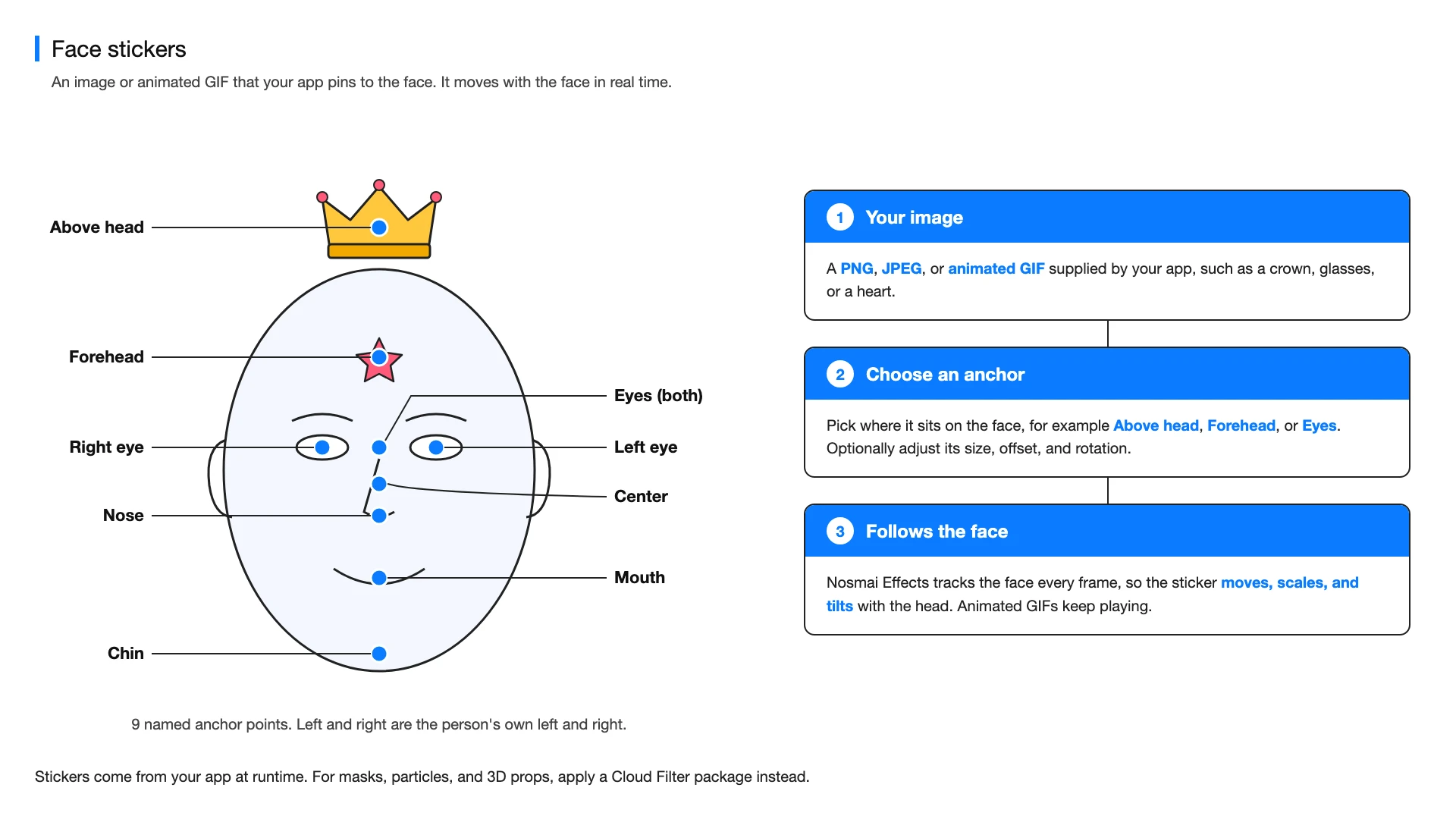
A face sticker is a PNG, JPEG, or animated GIF that your app pins to one of nine points on the face. Nosmai Effects tracks the face every frame, so the sticker moves, scales, and tilts with the head.
Choose the content type
| Type | Use it for | Source |
|---|---|---|
| Runtime face sticker | A PNG, JPEG, or animated GIF supplied by the application | Flutter asset or encoded image bytes |
| Authored AR overlay | Face masks, particles, animated props, and 3D content | A compatible Cloud Filter package |
Add a runtime face sticker
Declare the image under assets in pubspec.yaml, then apply it after NosmaiCameraPreview reports that it is initialized.
final applied = await NosmaiFlutter.instance.setFaceStickerAsset(
  'assets/stickers/heart.gif',
  anchor: NosmaiFaceStickerAnchor.forehead,
  scale: 0.45,
  opacity: 1.0,
);

if (!applied) {
  throw StateError('Face sticker could not be applied');
}
Use setFaceSticker(bytes, ...) when the application already has PNG, JPEG, or animated GIF bytes. Supported anchors include the face centre, forehead, above the head, either eye, both eyes, nose, mouth, and chin.
Adjust placement
await NosmaiFlutter.instance.setFaceStickerPlacement(
  anchor: NosmaiFaceStickerAnchor.nose,
  offsetX: 0.0,
  offsetY: 0.05,
  scale: 0.4,
  rotationDeg: 0.0,
  opacity: 1.0,
);
Offsets and scale are relative to the tracked face. Keep opacity between 0.0 and 1.0, and use the same anchor when updating placement.
Remove the sticker
if (await NosmaiFlutter.instance.isFaceStickerActive()) {
  await NosmaiFlutter.instance.clearFaceSticker();
}
Apply an authored or 3D overlay
final overlays = await NosmaiFlutter.instance.getCloudFilters(
  filterType: NosmaiCloudFilterType.effects,
  page: 1,
  limit: 20,
);
final overlay = overlays.first;
final download = await NosmaiFlutter.instance.downloadCloudFilter(
  overlay.cloudIdentifier,
);
final packagePath = download['path'] as String?;

if (packagePath == null ||
    !await NosmaiFlutter.instance.applyEffect(packagePath)) {
  throw StateError('AR overlay could not be applied');
}
Keep NosmaiCameraPreview mounted while changing content. Runtime face stickers and authored AR effects share the AR overlay slot, so the most recently applied item replaces the previous item.
Verify
Test face loss and return, head rotation, camera switching, background and resume, and repeated opening and closing of the camera screen.
Common errors
| Symptom | Fix |
|---|---|
| Flutter cannot find the sticker | Declare its directory under flutter.assets and use the exact asset path |
| Animated GIF is static | Pass the original GIF asset or bytes instead of a decoded still image |
| Sticker disappears after an AR mask is applied | Both use the AR overlay slot; apply the item that should remain visible last |
