



Overview
A 3D model layer pins a GLB to a tracked face or hand: glasses, a hat, a helmet, or a hand prop. You import the model, choose face or hand, and tune its placement, materials, and animation in the inspector.
Product: Nosmai Studio · Platform: macOS, Windows · Updated: 6 October 2026 · Reading time: 10 minutes
Prerequisites
- A project open in the editor.
- A model file in
glb,gltf, orvrm.
Add the model
- In the Layers panel, press +, then choose 3D model layer.
- Choose where it goes: Model on a face or Model on a hand (hand tracking).
- Pick the model file, or add the layer and choose the file in its inspector.
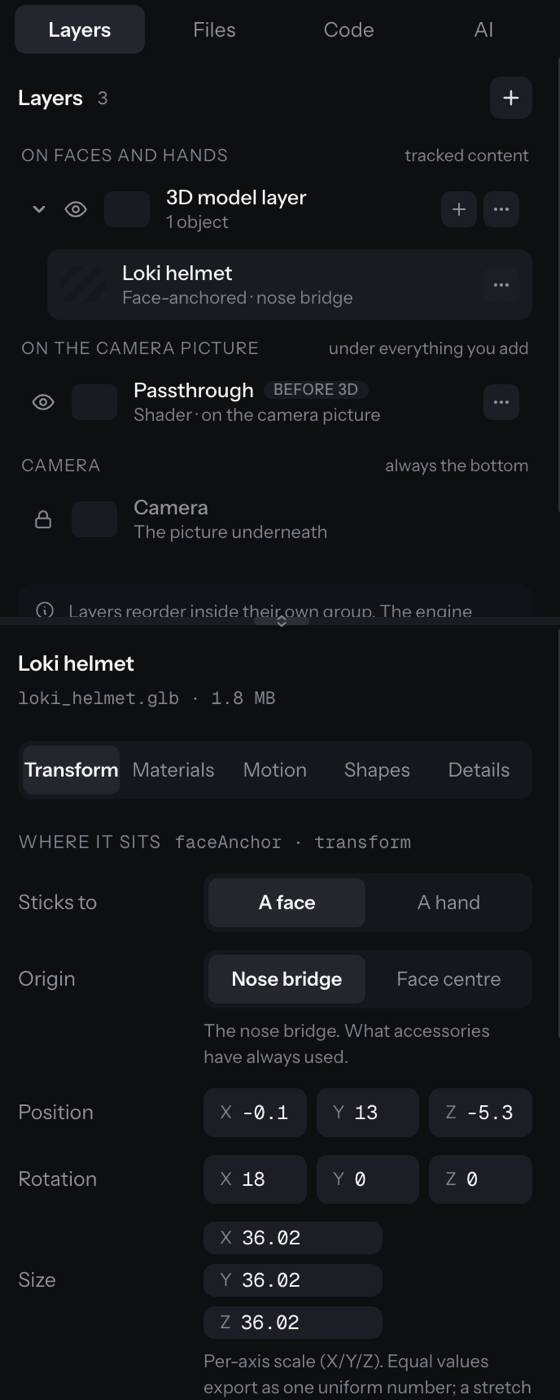
Place and scale it
Select the model object to open its inspector:
- Position: x, y, z.
- Rotation: x, y, z in degrees.
- Size: per-axis scale (X, Y, Z). Equal values on all three axes export as one uniform scale; different values stretch the model on that axis.
- Face anchor: nose or the canonical face, or pin to a hand landmark.
- Face occlusion: let the face hide the parts of the model behind it, so glasses sit believably on the nose.
You can also use the Move, Rotate, and Resize tools in the tool rail to drag the model in the 3D view.
Materials, lighting, and reflection
The inspector has sections for:
- Materials: a preset, alpha mode, opacity, a rim light, and a dissolve.
- Animation: choose a clip, speed, loop, autoplay, and whether it holds on the last frame.
- Blendshapes: drive the model's shape keys.
- Spring bones: secondary motion, tuned in Hz (frequency and damping).
- 3D lighting: ambient, a key and fill light, and ACES tone mapping.
- Reflection: image-based lighting on or off with an intensity, a metallic shine, live camera reflection, and a choice of environment or a custom HDR.
React to a gesture
A model can react to a face gesture (for example a long blink) to reveal a material or play an animation. See Add reactions and gestures.
Verify it worked
- The model appears on the face or hand in the preview when one is tracked.
- Moving, rotating, and scaling in the inspector or with the tools updates the model in the 3D view.
- With face occlusion on, the face hides the parts of the model behind it.
Common problems
| What you see | Why | Fix |
|---|---|---|
| The model does not appear | No face or hand is tracked, or the layer is hidden | Show a face or hand, and check the layer's eye toggle |
| The model is far too large or small | The GLB's own units differ from the scene | Adjust the single scale value until it fits |
| The model sits in front of the face when it should be behind | Face occlusion is off | Turn on face occlusion in the model object inspector |
| The model looks stretched on one axis | The per-axis sizes differ | Set X, Y, and Z to the same value for a uniform scale |
