



Overview
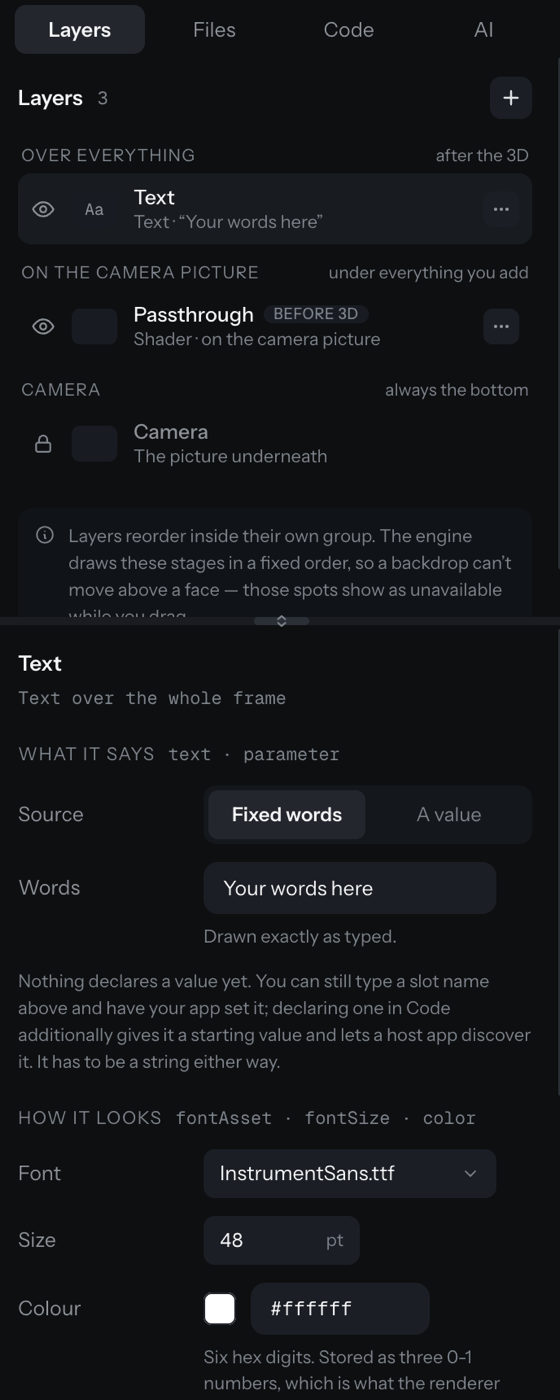
A Text layer shows words over the frame. You add it, place it on the Layout view, and set its font, size, and colour in the inspector. Text can be fixed words you type, or a value a game script sets live (a score, a timer, a counter).
Product: Nosmai Studio · Platform: macOS, Windows · Updated: 6 October 2026 · Reading time: 8 minutes
Prerequisites
- A project open in the editor.
Add a text layer
- In the Layers panel, press +, then choose Text (for a single piece of text) or Text layer (a group that holds several pieces, such as a score and a timer).
- The new text appears in the Layers list and the Layout view opens as a drag surface.
Set what it says
Select the text layer to open its inspector:
- Source: Fixed words draws exactly what you type in the Words box.
- Source: A value binds the text to a named parameter (a
$PARAM), so a game script can set it live. The value has to be a string.
Set the font, size, and colour
- Font: a bundled font, or import a
.ttfor.otf. - Size: in points. The default is
48. - Colour: a hex value such as
#ffffff.
Place it on the frame
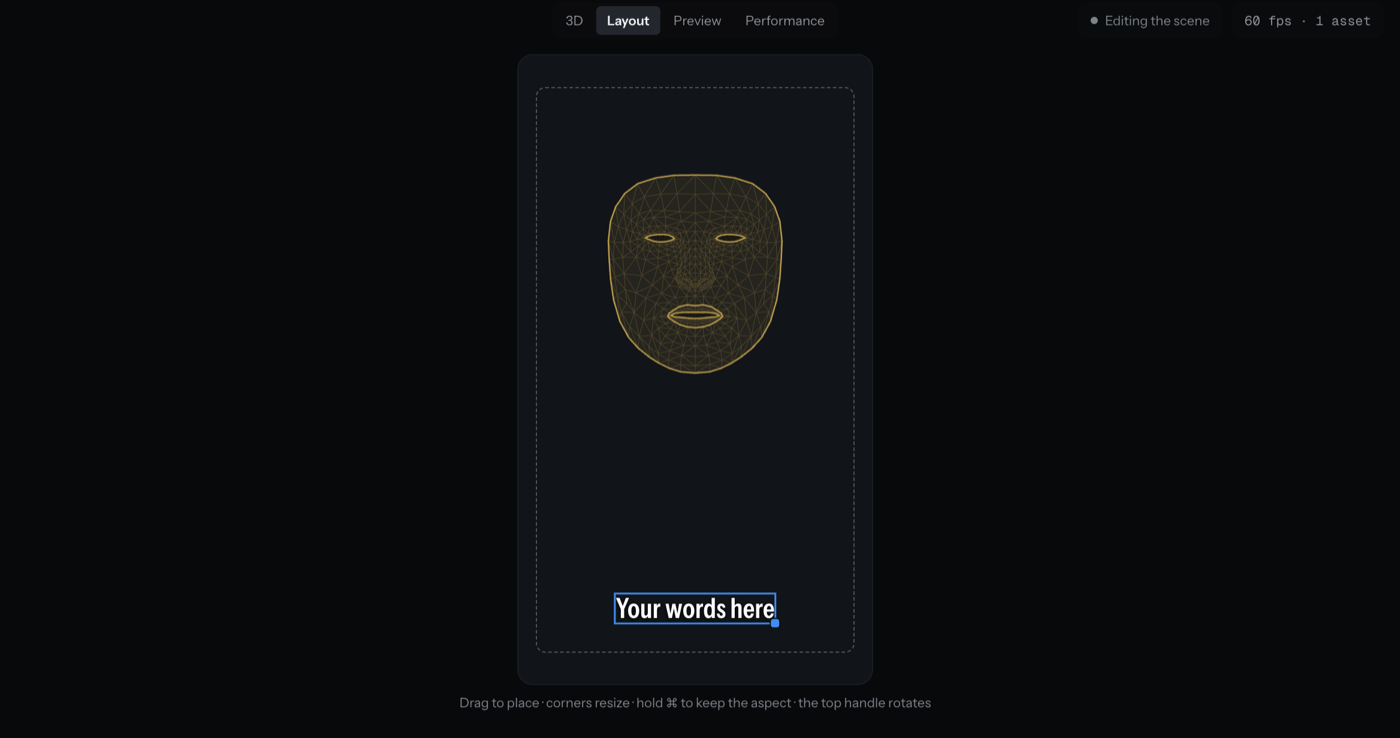
Open the Layout view. The text shows on a frame surface with a face reference:
- Drag the text to move it.
- Drag a corner to resize; hold Command to keep its aspect.
- Drag the top handle to rotate.
Game HUD text
For a game filter, a script writes to named text slots (a score, lives, a status, a countdown). If a slot has no matching text layer, the value will not show. The Code panel detects these slots and offers a one-click Create the missing text layers. See Add a script or shader.
Verify it worked
- The text appears in the Layout view and can be dragged, resized, and rotated.
- The font, size, and colour change the text as you set them.
- For a bound value, the text layer lists the parameter it reads.
Common problems
| What you see | Why | Fix |
|---|---|---|
| The text is always uppercase | The chosen font is a caps-style display font whose lowercase glyphs are drawn at cap height | Pick a font with a true lowercase, or accept the caps look for that font |
| Game text does not appear | The script writes a slot with no matching text layer | In the Code panel, create the missing text layers for the detected slots |
| "A value" is disabled for a parameter | The parameter is not a string, and text needs a string | Bind to a string parameter, or declare one |
| The Layout view is not offered | The filter has no media or text layer | Add the text layer first; Layout then appears |
