



Overview
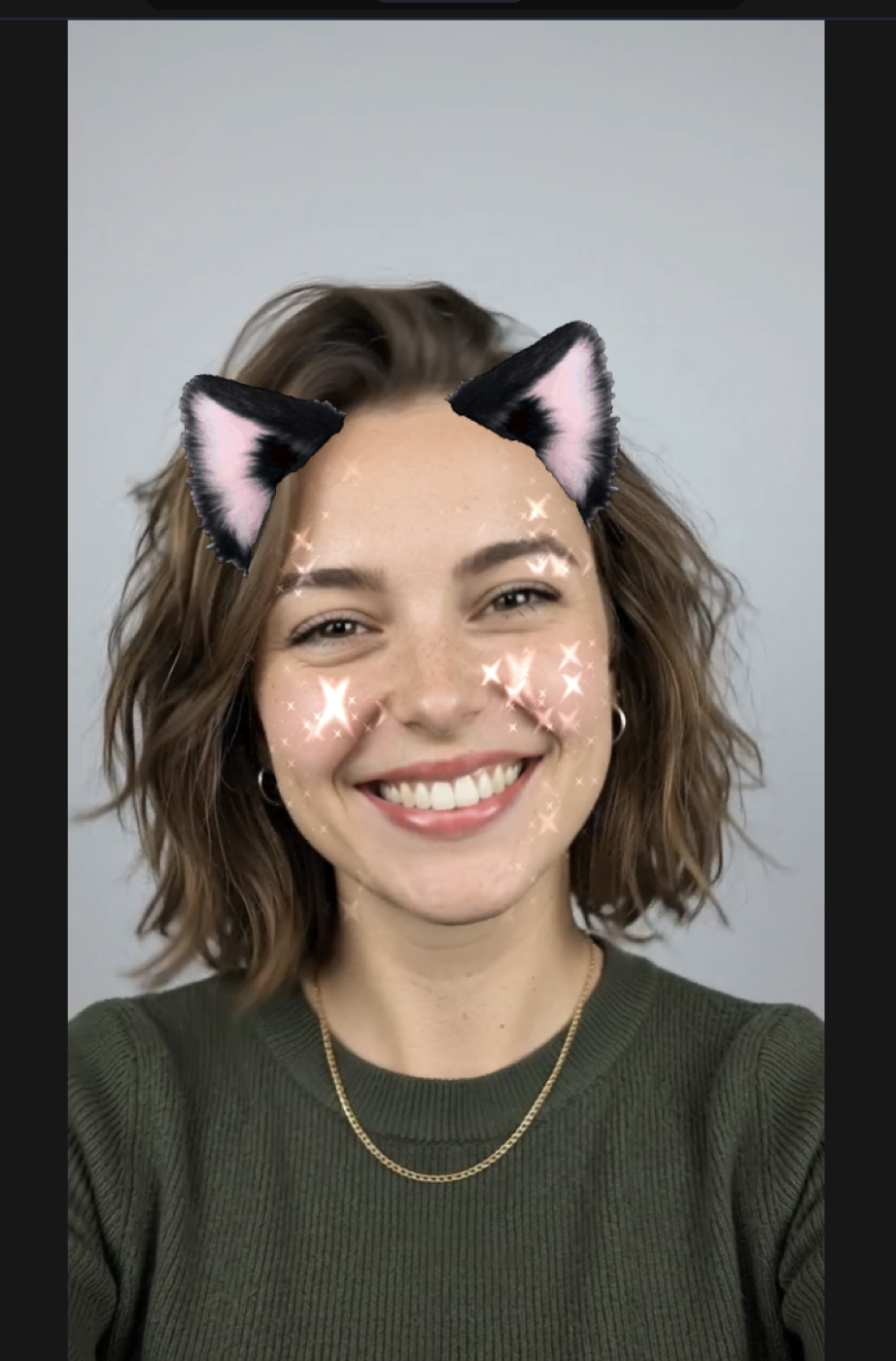
The preview in Nosmai Studio shows your filter composited live, the same way the SDK renders it. You choose a preview source, press play, and the Preview view shows the result. The camera is the default source, so the filter appears on a real face straight away.
Product: Nosmai Studio · Platform: macOS, Windows · Updated: 6 October 2026 · Reading time: 7 minutes
Prerequisites
- A project open in the editor.
- A working camera, or a bundled model, or a file to import as the source.
Choose a preview source
The source picker is in the top bar:
- Camera (the default): your webcam. A green dot means a camera is available. Device names are blank until you allow camera access once.
- Picture Model or Video Model: bundled sample media, one pick away for when there is no camera.
- Import: a picture or video from disk (
png,jpg,jpeg,webp, ormp4,mov,webm,m4v).
Run the preview
- Press play in the top bar. The stage switches to the Preview view and the engine renders the filter.
- Allow camera access if your system asks.
- Press stop to end the preview.
Check it at different shapes
A filter ships to phones, tablets, and desktop webcams, so the same effect has to survive every shape. The target aspect control previews each one without changing the package:
- Source, 9:16 (phone portrait), 16:9 (landscape), 1:1 (square), 4:5 (feed crop).
- A safe area overlay marks the region every shape has in common.
Target aspect is an authoring check only. It is never written to the filter.
Face-tracking model
The FaceMesh quality setting chooses the tracking model:
- Lite (default): lighter, what Studio has always used.
- Full: the model the mobile SDKs use, so it is the honest choice when you want to see how tracking behaves on a phone.
Preview on another screen or device
- The preview window control opens a separate, always-on-top window that mirrors the filter, useful on a second monitor.
- A connected phone or browser can join through the live-preview bridge, shown on the status chip as "Live in" that device.
Verify it worked
- The Preview view shows the filter on your source, updating live.
- Changing a layer updates the preview immediately.
- The status chip shows a measured frame rate while the preview runs.
Common problems
| What you see | Why | Fix |
|---|---|---|
| The preview is black | The engine has not painted yet, or camera access was denied | Allow camera access, wait a second, or stop and start the preview |
| Device names are blank in the source picker | Camera access has not been granted yet | Allow the camera once; the real names then appear |
| The filter looks right on one shape and wrong on another | It was authored against a single aspect | Use the target aspect control to check each shape, and the safe area overlay |
| A video preview option is disabled for export | The source is a still image | Choose a camera or video source to produce a preview video |
