



Overview
The Nosmai Studio editor has four parts: the top bar across the top, the tool rail down the left, the stage in the middle, and the right panel on the right. The stage shows your filter and the right panel holds its layers, files, code, and per-layer settings. This page names each part so the rest of the documentation can refer to them.
Product: Nosmai Studio · Platform: macOS, Windows · Updated: 6 October 2026 · Reading time: 6 minutes
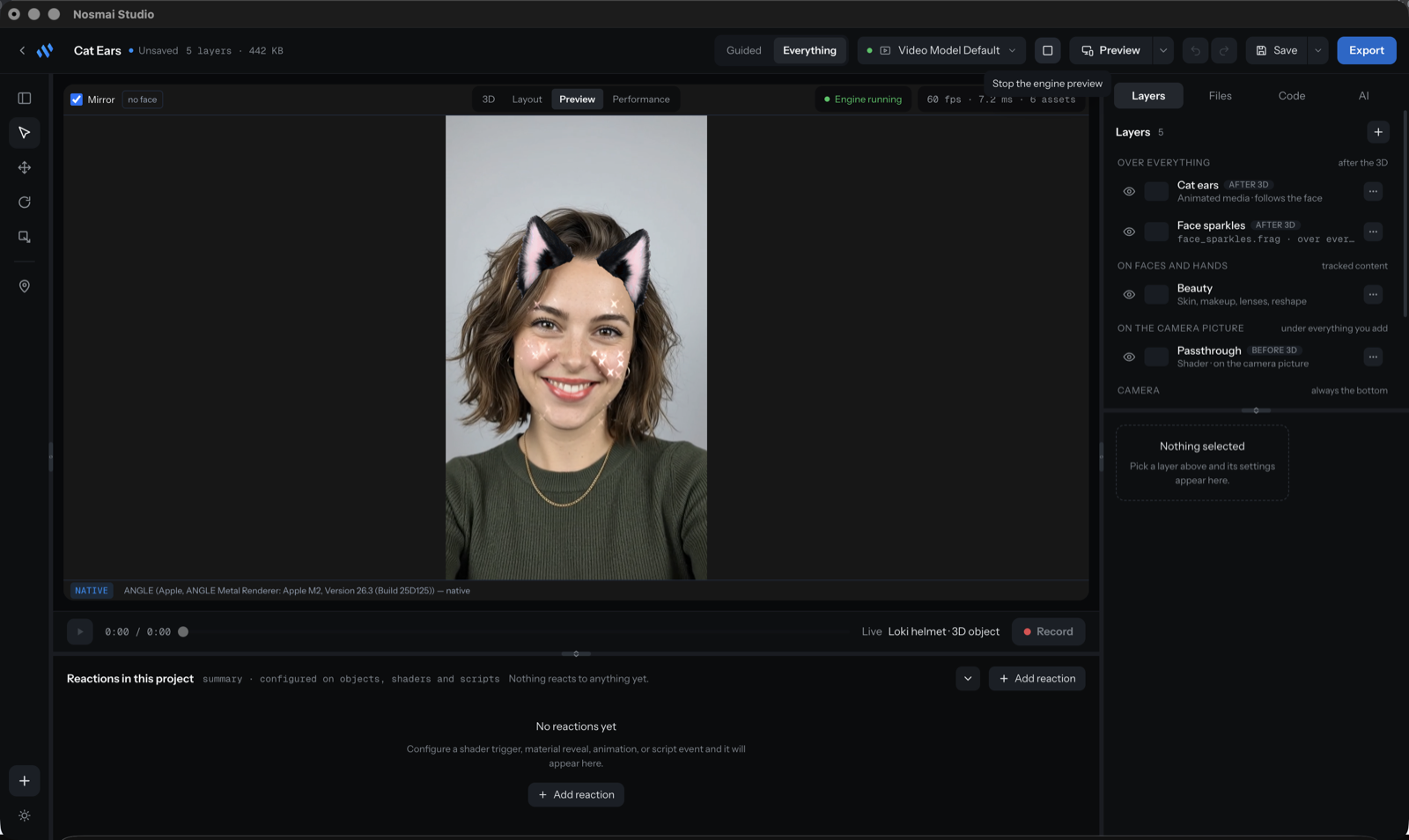
The top bar
Left to right, the top bar holds:
- The brand mark, which goes back to the home screen.
- The project name with its saved state and a layer and size summary.
- The Guided / Everything switch, which sets how much of Studio is shown. See Modes and views.
- The preview source picker (camera, a bundled model, or an imported file).
- Play / Stop for the live preview.
- The preview window control, which opens a separate always-on-top preview.
- Undo and Redo.
- The Save split button: Save, Save a copy, Save as a template, and Revert to last save.
- Export, which opens the export dialog.
The stage and its views
The stage is the large area in the middle. A switcher above it chooses what the stage shows:
| View | What it shows |
|---|---|
| 3D | The 3D scene, with a backdrop picker, Fit to view, and a face guide |
| Layout | A frame surface for placing media and text layers (shown only when the filter has one) |
| Preview | The real, composited live render of the filter |
| Performance | A report on what the filter costs. See Check performance |
The stage opens on Preview because most filters put nothing in the 3D scene, so a new project would otherwise open on an empty viewport.
The tool rail
The narrow rail on the left holds tools that act on whatever is selected, so a tool only appears when the selection supports it:
- Select picks a layer or object.
- Move, Rotate, Resize appear for things that have a transform, and drive the gizmo in the 3D view.
- Pin to face anchors an object to a tracked face.
- Edit mask opens the face-mask editor.
At the bottom of the rail are Add a layer and the light/dark theme switch.
The right panel
The right panel has three tabs:
- Layers lists every layer, grouped by where it draws, with the inspector for the selected layer below the list. See Panels.
- Files lists the assets in the project.
- Code holds runtime parameters, shaders, and scripts. It appears only in Everything mode.
Below 1280 pixels wide, the right panel becomes a closable overlay.
Verify it worked
- You can name each of the four parts: top bar, tool rail, stage, right panel.
- Switching the stage view changes what the middle area shows.
- Selecting a layer shows its inspector under the layer list.
Common problems
| What you see | Why | Fix |
|---|---|---|
| No Code tab | You are in Guided mode | Switch to Everything in the top bar |
| No Layout view in the switcher | The filter has no media or text layer | Add a media or text layer; Layout appears |
| A tool is missing from the rail | The selection does not support it | Select a layer or object that has a transform or a face anchor |
| The right panel is gone | The window is narrow and the panel collapsed to an overlay | Widen the window, or open the panel overlay |
